Turn a photo of a receipt or a list into a table
Numbers often arrive as paper: a receipt, a delivery note, a stock list, a page from a notebook. Typing them in is the part everybody puts off, and it is the part a phone camera can do for you.
How to do it
- Open a card and press Add data, then Photo or camera. On a phone this offers the camera and the photo library.
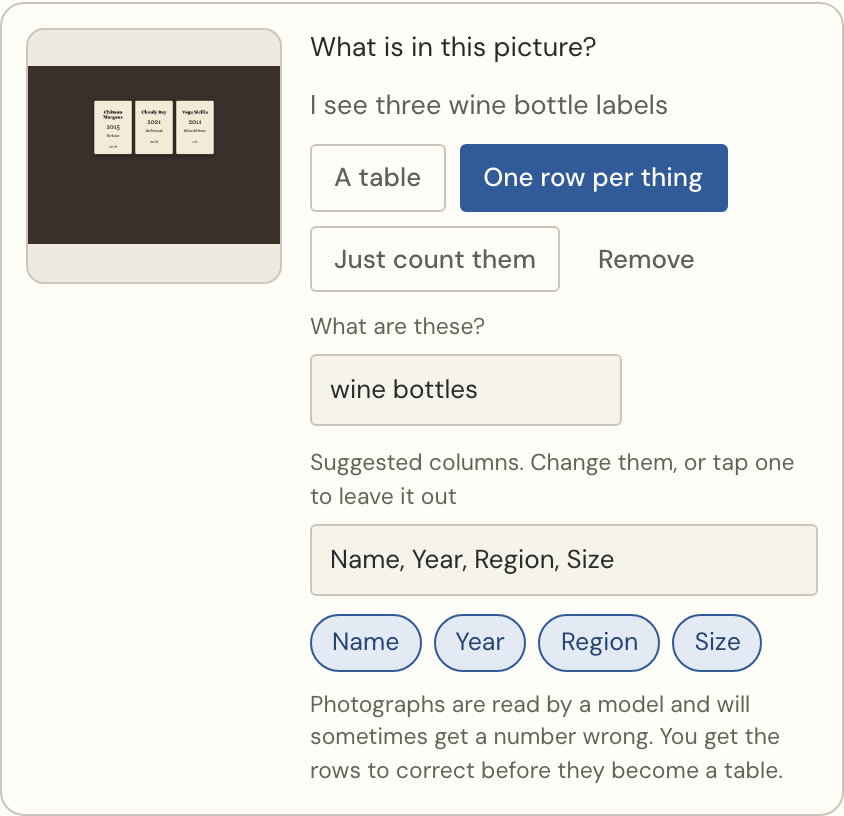
- Indexcard takes a quick look and says what it sees — “I see three wine bottle labels” — then suggests how to read it: A table, One row per thing, or Just count them.
- It also suggests the columns. For a receipt that is usually Date, Item, Qty, Price; for a shelf of bottles, Name, Year, Region, Size. Each suggestion is a chip: press one to leave it out, or type your own.
- Press the suggested button. The rows come back as text you can correct before they become a table.
What it is good at, and what it is not
Printed tables and receipts read well. Handwriting reads surprisingly well, and gets numbers wrong often enough that you should check the total. A photograph taken at an angle, or with a fold through the middle, loses rows.
If the rows come back uneven, there is a second, slower reading: Read it again, more carefully. It takes about a minute and splits columns that the quick read ran together.
Nothing is saved as a table until you press Import, and the rows are shown to you first. Correcting two numbers in a box beats typing forty.
Then what
Once it is a table you can ask it questions in plain words, chart it, and write the totals into a sentence.
Try it with your own numbers
Paste a table, ask a question, and put the answer in a sentence. Free to start, no account needed.